Mastering Notion AI: Complete Productivity Workflow
Transform your Notion workspace into an intelligent productivity hub. Learn how to leverage AI-powered features for writing, organizing, meeting notes, and team collaboration.
What You'll Learn
- Workspace Integration: Notion AI works natively within your existing setup—no external tools required
- Context Awareness: The AI understands your page content and workspace structure for relevant suggestions
- Database Power: AI can analyze, categorize, and populate database entries automatically
- Meeting Efficiency: Transform rough meeting notes into structured documents with action items
- Team Consistency: Maintain uniform voice and style across collaborative workspaces
Tools Required:
Ready to Get Started?
Try Notion AI and follow along with this workflow:
💡 This is an affiliate link. We may earn a commission if you sign up, at no extra cost to you.
Mastering Notion AI: Complete Productivity Workflow
Estimated Time: 45-60 minutes
Difficulty: Beginner
Tool Required: Notion workspace (Free or paid plan)
Category: Productivity
What You'll Learn
Notion AI transforms your workspace into an intelligent productivity hub that writes, organizes, and analyzes for you. This workflow guide shows you how to leverage AI-powered features that reduce manual work by up to 70% while maintaining your unique workflow style.
Whether you're managing projects, taking meeting notes, or organizing knowledge bases, you'll discover how to make Notion AI work seamlessly within your existing workspace without disrupting established processes.
Section 1: Getting Started with Notion AI
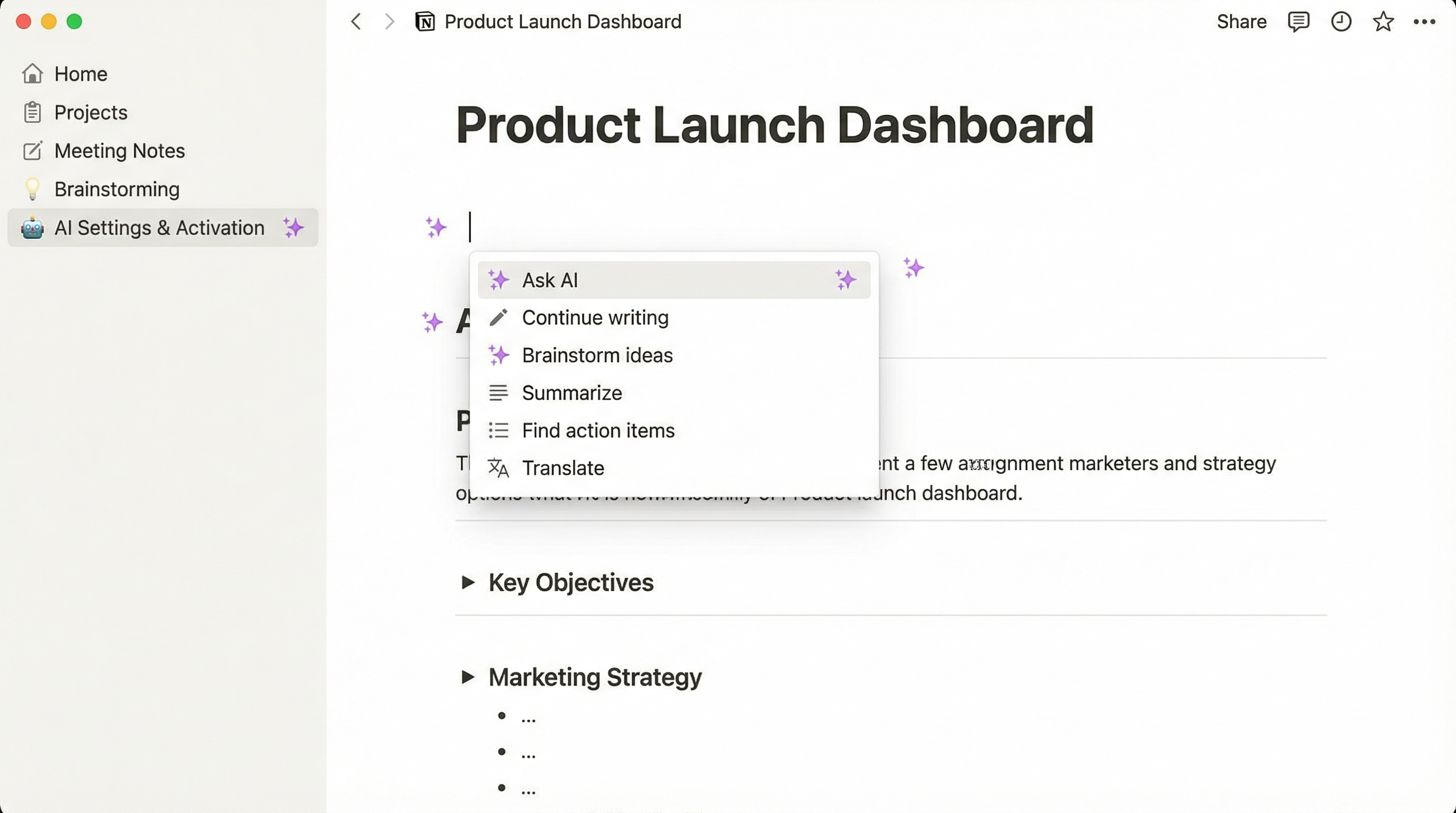
Notion AI integrates directly into your existing Notion workspace as a native feature, requiring no external plugins or complicated setup. The AI assistant appears whenever you need it through a simple space bar command or inline menu.
Activation Process:
- Enable Notion AI in your workspace settings (available on all plans with add-on subscription)
- Access the AI menu by pressing Space when your cursor is in any text block
- Use slash commands by typing
/aito see all available AI actions - Highlight text to see contextual AI suggestions appear automatically
Key Interface Elements:
- Inline AI Assistant: Appears when you press Space in empty blocks
- Selection Menu: Shows AI options when you highlight existing text
- Page AI Button: Purple sparkle icon in the top-right of every page
- Database AI: Special commands for generating database properties and entries
Pro Setup Tips:
- Create AI Templates: Build reusable page templates with pre-configured AI prompts
- Set Up Hotkeys: Use keyboard shortcuts for frequently used AI commands
- Organize AI Outputs: Create a dedicated workspace section for AI-generated drafts
- Configure Workspace Settings: Adjust AI response length and tone preferences
Section 2: AI Writing Assistant Features
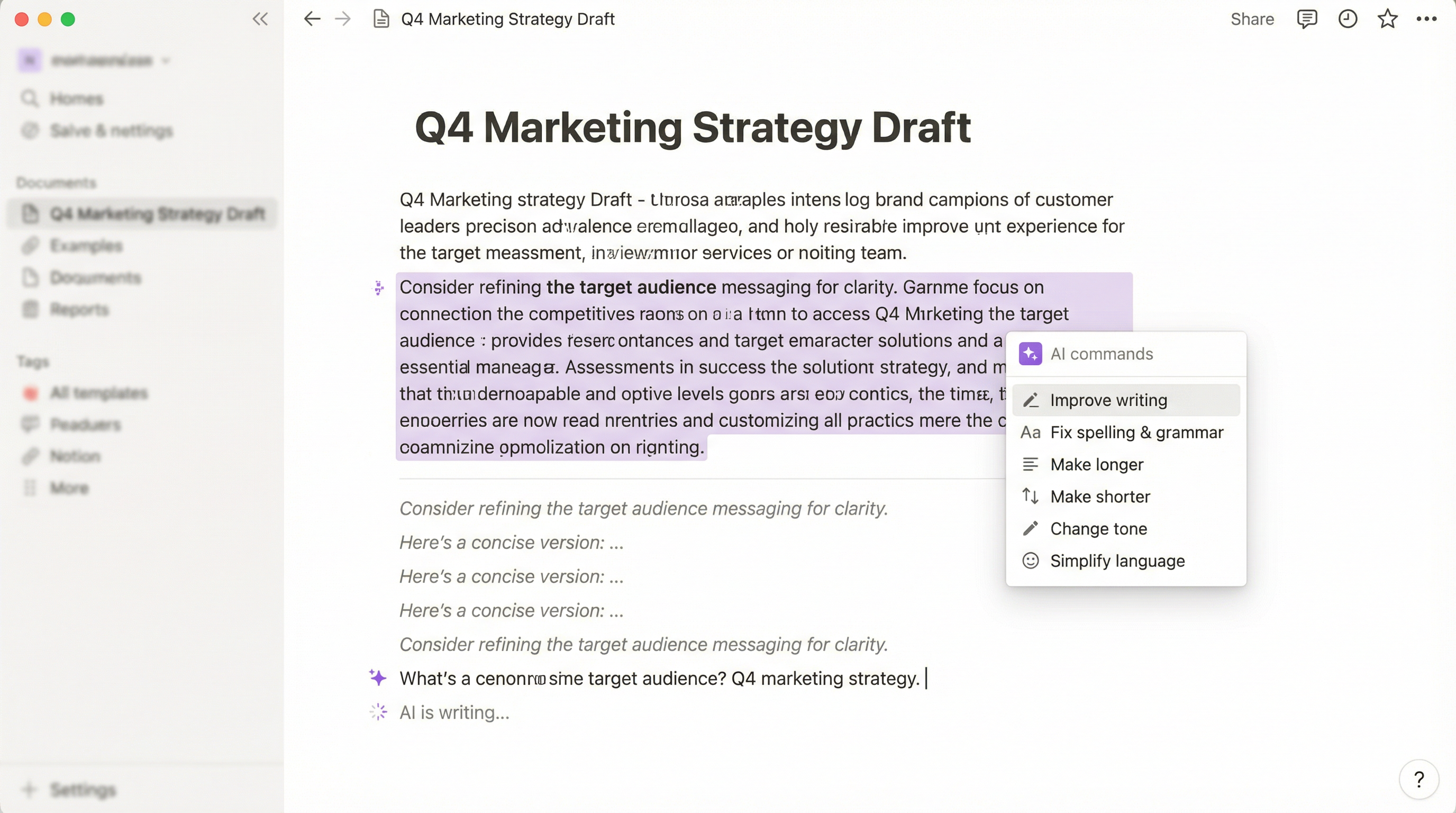
Notion AI's writing capabilities go far beyond simple autocomplete. The system understands context from your entire page and can match your writing style, tone, and format preferences.
Core Writing Commands:
Continue Writing
The AI analyzes your previous paragraphs and continues in the same voice and direction. Perfect for:
- Blog posts when you're stuck mid-article
- Documentation that needs consistent technical tone
- Creative writing projects requiring narrative flow
- Meeting notes that need professional expansion
Improve Writing
Enhances clarity, grammar, and readability without changing your core message:
- Removes redundant phrases
- Fixes grammatical errors
- Improves sentence structure
- Maintains your original intent
Change Tone
Rewrites content in different voices:
- Professional (for client communications)
- Casual (for internal team docs)
- Confident (for presentations)
- Friendly (for customer support)
Make Longer/Shorter
Expands or condenses text while preserving key points:
- Expand bullet points into full paragraphs
- Condense lengthy reports into executive summaries
- Add supporting details to sparse notes
- Create elevator pitches from detailed descriptions
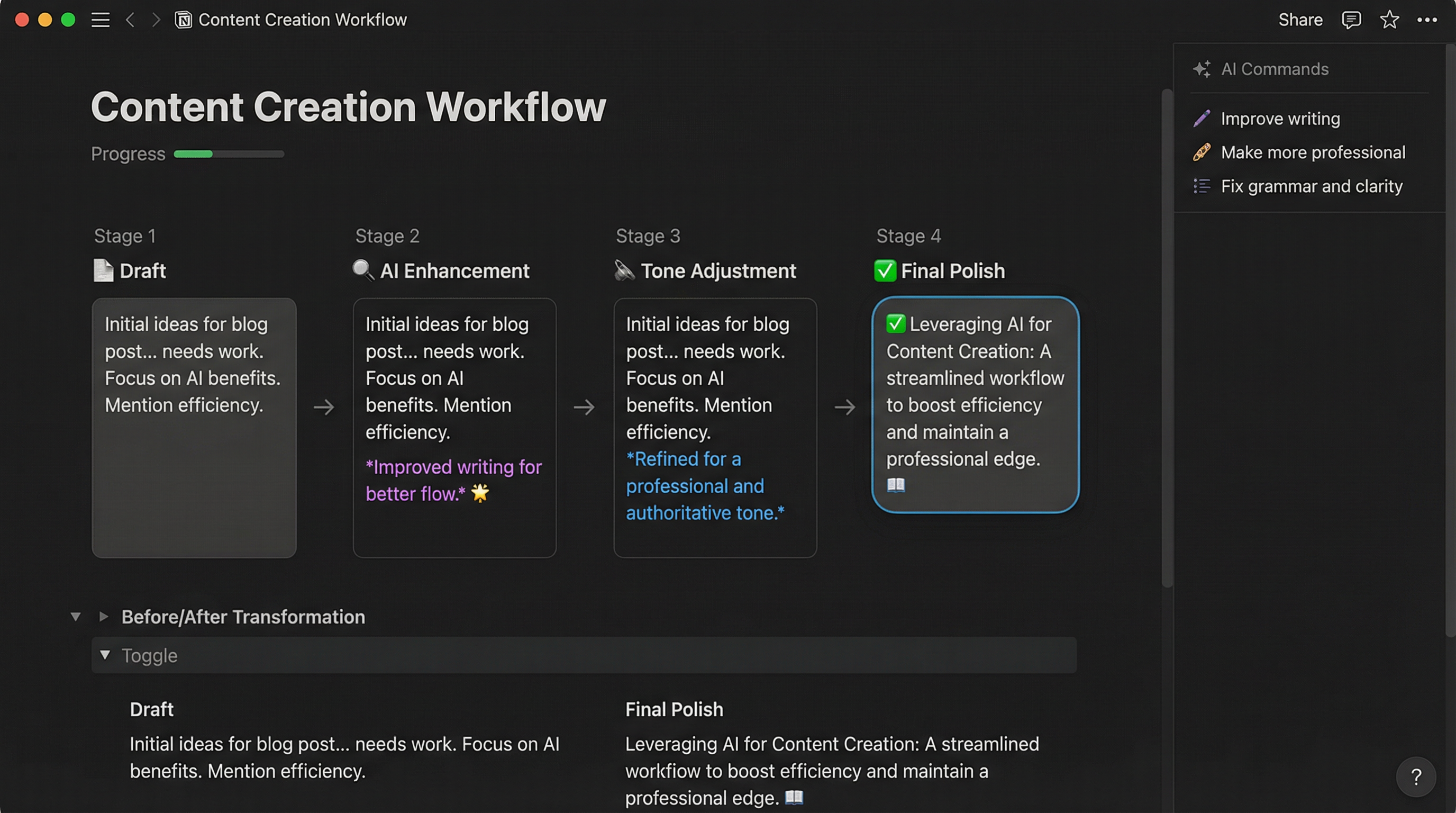
Real-World Writing Workflow:
- Draft Phase: Write rough ideas quickly without worrying about polish
- Enhancement: Use "Improve Writing" to refine each section
- Tone Adjustment: Apply appropriate tone for your audience
- Expansion: Add depth to important points with "Make Longer"
- Final Polish: Use "Fix Spelling & Grammar" for final cleanup
Section 3: Database Enhancement with AI
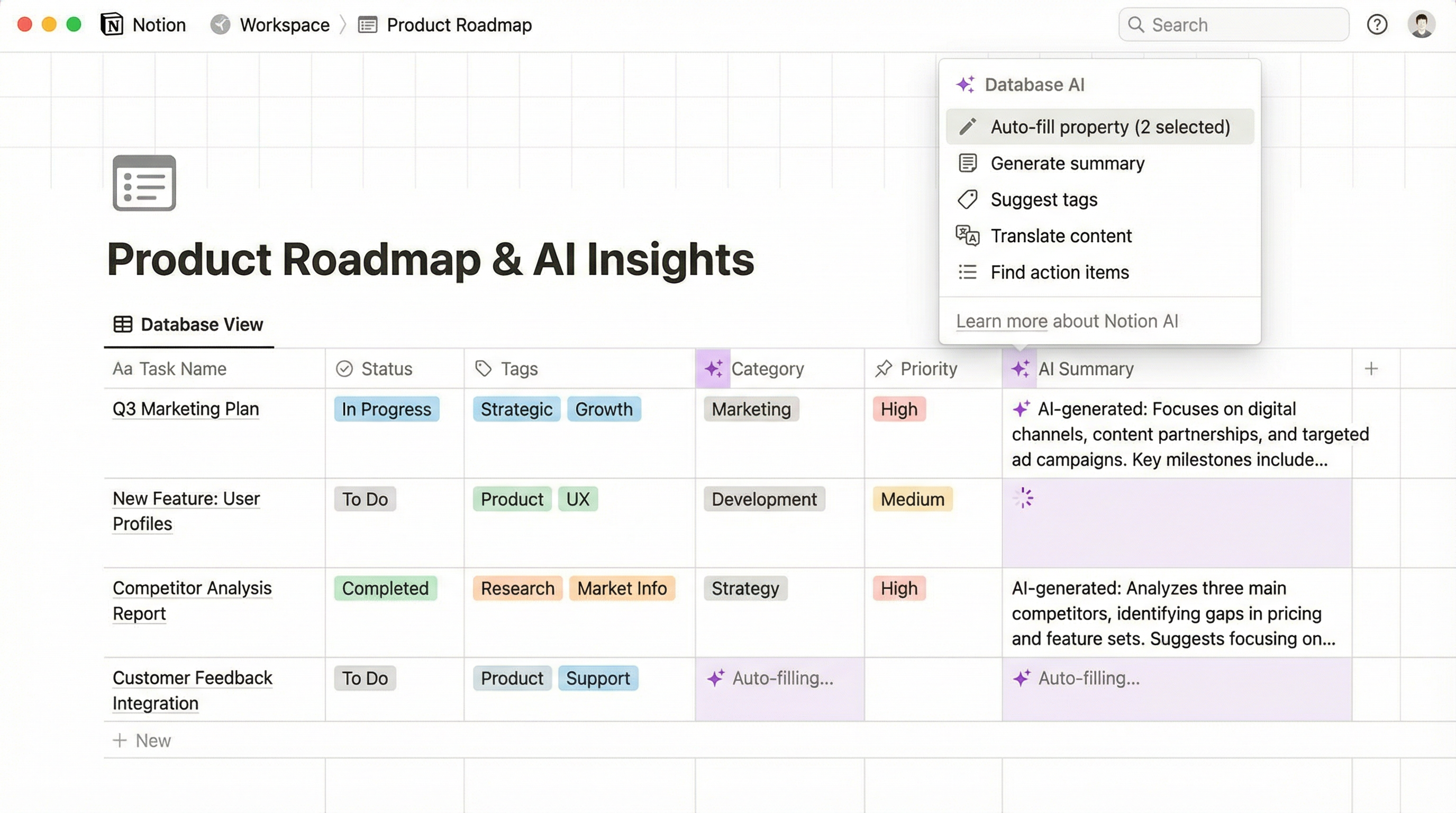
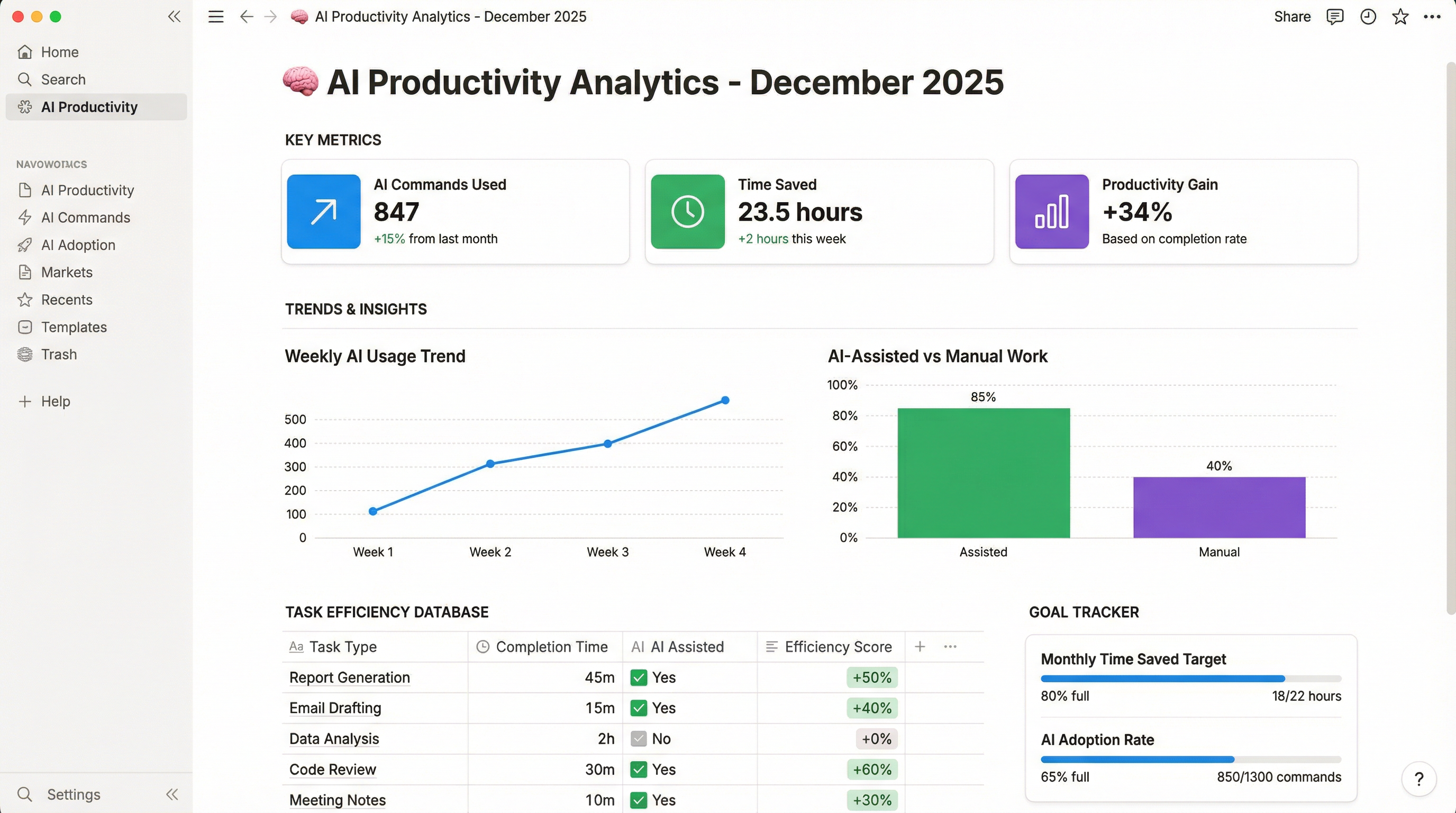
Notion databases become exponentially more powerful when combined with AI capabilities. The system can analyze, categorize, and populate database entries automatically.
AI-Powered Database Actions:
Auto-Fill Properties
The AI reads your database entries and suggests or automatically fills:
- Tags and categories based on content
- Status fields based on keywords
- Priority levels from urgency indicators
- Dates extracted from text descriptions
Generate Summaries
Create automatic summaries for:
- Long meeting notes → concise action items
- Research articles → key takeaways
- Project updates → status snapshots
- Customer feedback → insight highlights
Create Related Content
Generate connected database entries:
- Task lists from project descriptions
- Follow-up items from meeting notes
- Sub-projects from main initiatives
- Documentation pages from feature specs
Database AI Workflow Example:
- Import Raw Data: Paste unstructured content into database entries
- AI Analysis: Let AI categorize and tag entries automatically
- Property Generation: Use AI to fill in missing metadata fields
- Summary Creation: Generate executive summaries for each entry
- Relationship Mapping: Create linked entries for related content
Advanced Database Techniques:
- Batch Processing: Select multiple entries and apply AI commands simultaneously
- Template Automation: Create database templates with pre-configured AI actions
- Smart Views: Use AI-generated properties to create powerful filtered views
- Cross-Database Analysis: Link multiple databases and use AI to find connections
Section 4: Meeting Notes & Transcription
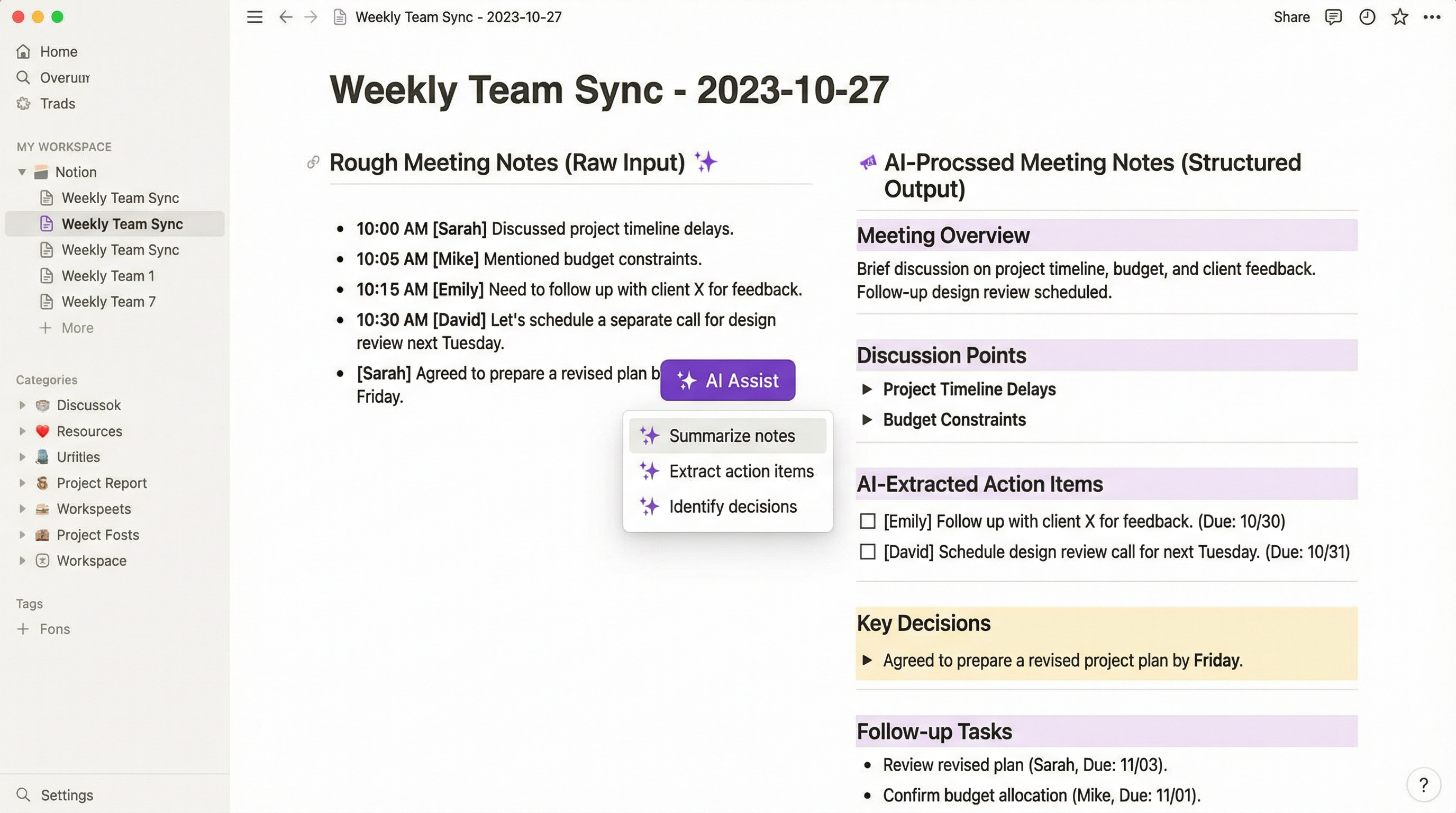
Notion AI excels at transforming messy meeting notes into structured, actionable documents. The system can identify key decisions, action items, and important discussions automatically.
Meeting Notes Workflow:
During Meetings:
- Take rough notes in bullet format (don't worry about structure)
- Capture key quotes and decisions verbatim
- Mark important points with simple symbols (!, ?, TODO)
- Focus on listening rather than perfect formatting
After Meetings:
- AI Summary Generation: Command: "Summarize these meeting notes"
- Action Item Extraction: Command: "Find action items"
- Decision Documentation: Command: "List key decisions made"
- Follow-up Creation: Command: "Create follow-up tasks"
AI Transcription Features:
While Notion AI doesn't directly transcribe audio, it excels at organizing transcripts:
- Import raw transcripts from tools like Otter.ai or Fireflies
- AI cleanup removes filler words and formatting issues
- Speaker identification organizes by participant
- Topic extraction creates section headers automatically
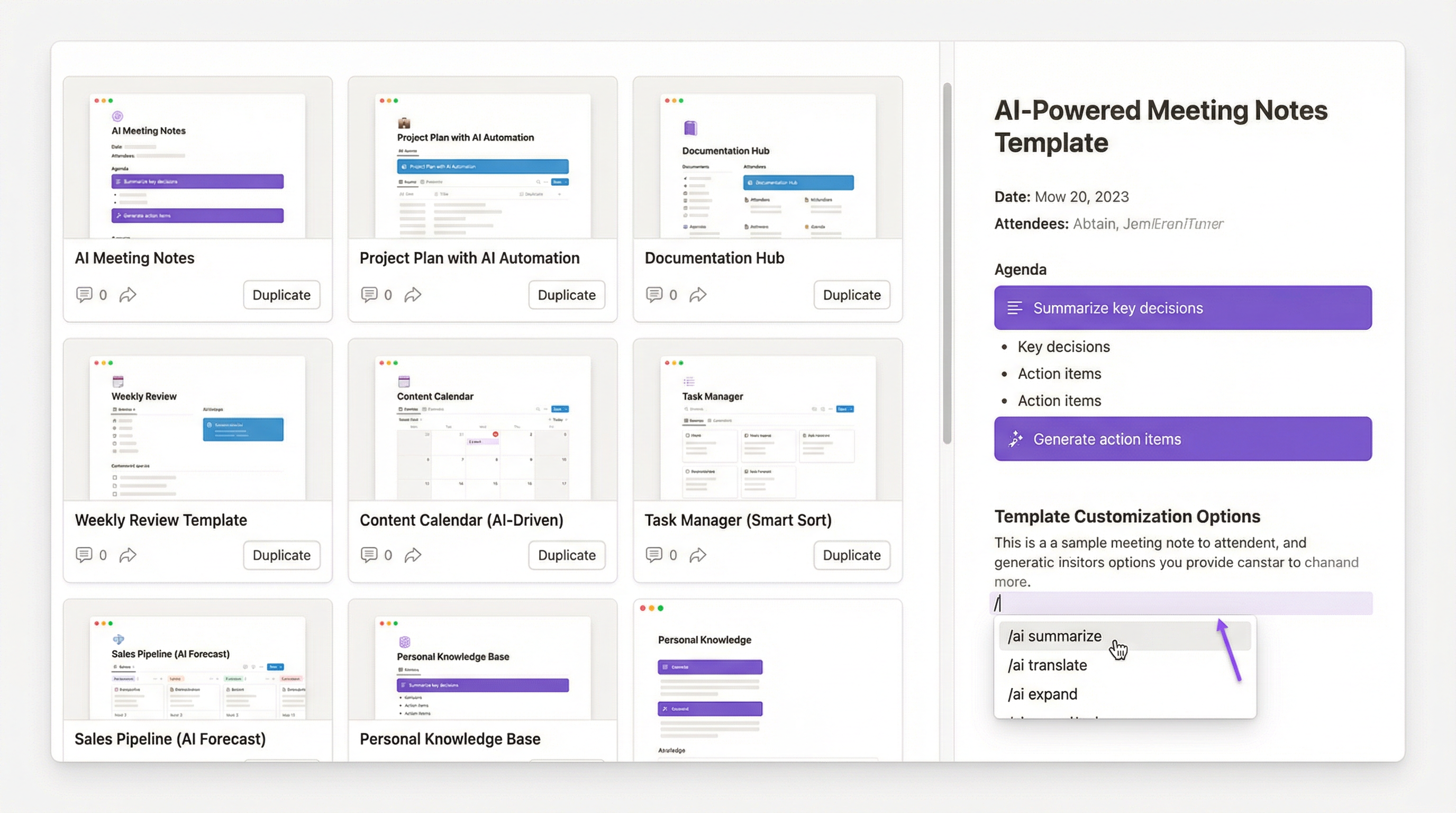
Meeting Template Setup:
Create reusable templates with:
- Pre-configured AI prompts for summary generation
- Automatic action item databases linked to task managers
- Standard formatting for different meeting types
- Integration with calendar for automatic date population
Section 5: Content Generation & Brainstorming
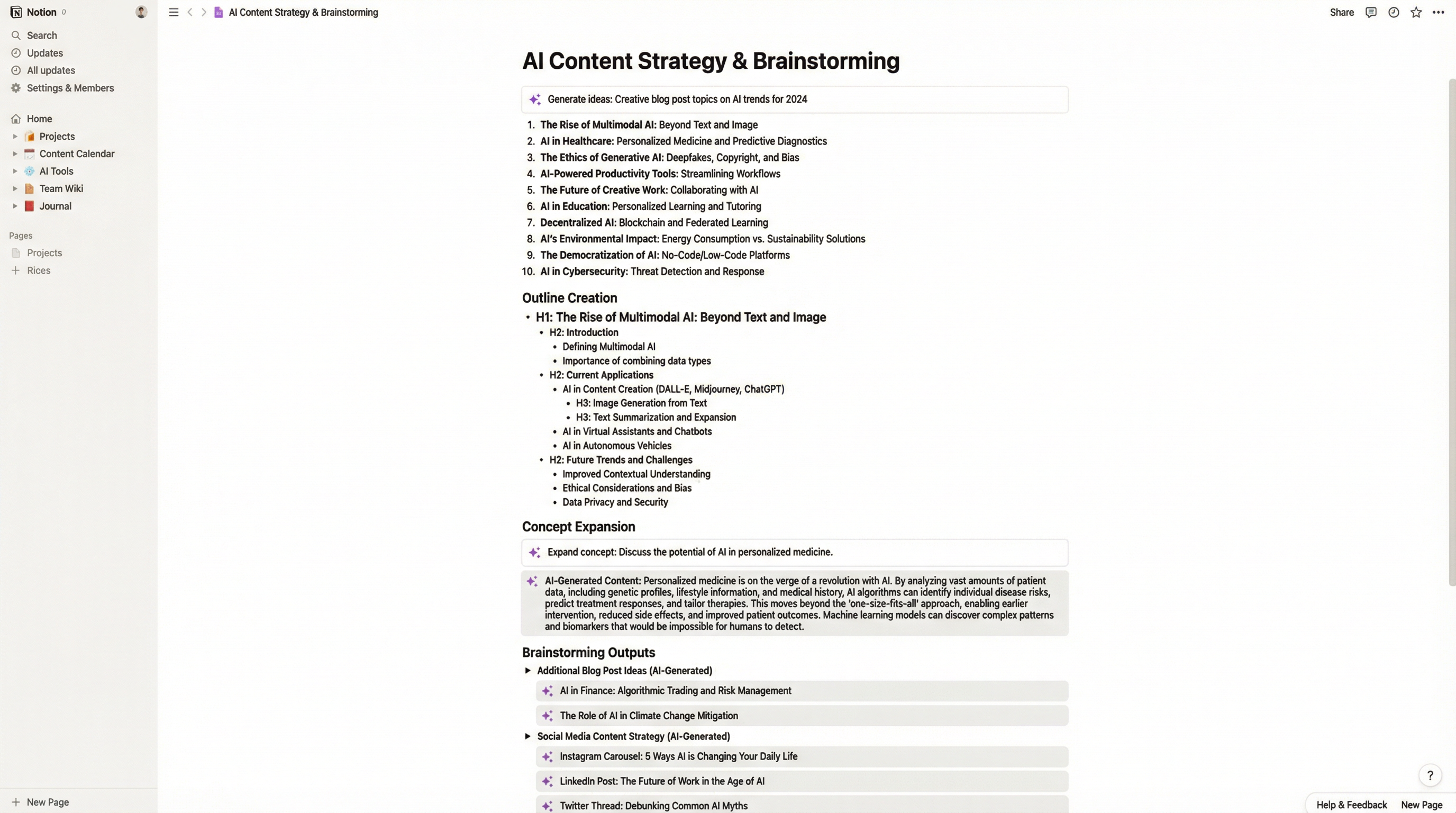
Notion AI serves as a powerful brainstorming partner that helps overcome creative blocks and generates fresh perspectives on challenging problems.
Brainstorming Commands:
Generate Ideas
Create lists of creative options for:
- Blog post topics in your niche
- Product feature concepts
- Marketing campaign angles
- Project naming options
- Event themes and activities
Create Outlines
Transform topics into structured frameworks:
- Blog post structures with headers
- Presentation decks with slide concepts
- Course curricula with module breakdowns
- Project plans with phase definitions
Expand on Concepts
Deepen ideas with supporting details:
- Turn bullet points into full sections
- Add examples and case studies
- Generate supporting arguments
- Create alternative perspectives
Content Generation Workflow:
- Initial Brainstorm: Use "Generate Ideas" for 10-15 concepts
- Selection: Choose 3-5 promising directions
- Outline Creation: Generate detailed outlines for top picks
- Content Drafting: Use "Continue Writing" to flesh out sections
- Refinement: Apply tone adjustments and improvements
- Finalization: Polish with grammar and readability enhancements
Advanced Brainstorming Techniques:
- Perspective Shifting: Ask AI to approach problems from different viewpoints
- Constraint-Based Ideation: Give AI specific limitations to inspire creativity
- Combination Prompts: Merge multiple AI outputs for unique hybrid ideas
- Iterative Refinement: Use AI feedback loops to progressively improve concepts
Section 6: Team Collaboration Features
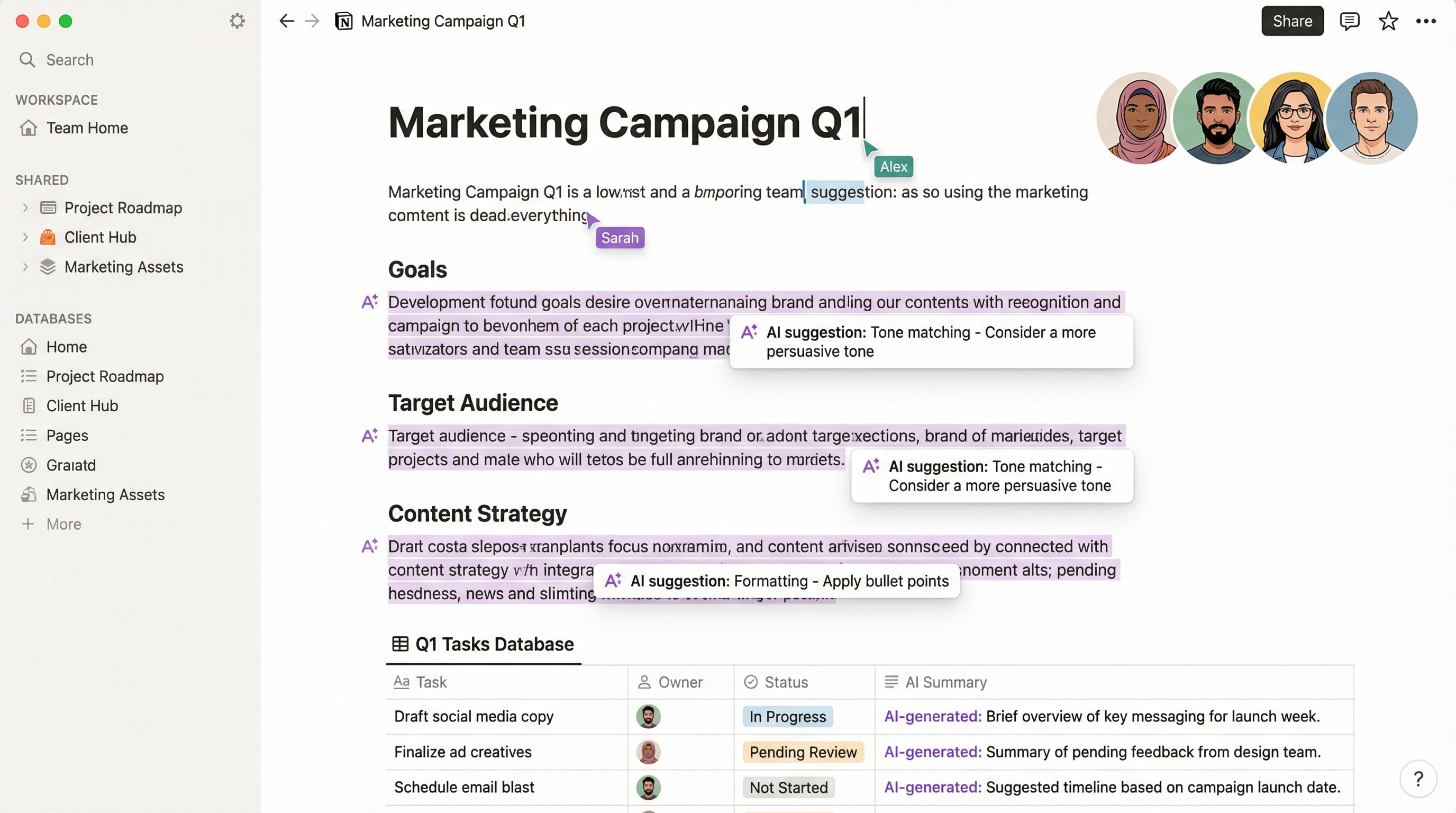
Notion AI amplifies team productivity by standardizing communication, automating documentation, and ensuring consistency across collaborative workspaces.
Collaboration AI Features:
Style Consistency
Maintain uniform voice across team members:
- Apply company style guides automatically
- Ensure professional tone in client-facing docs
- Standardize technical documentation format
- Align marketing messaging across channels
Translation & Localization
Work across language barriers:
- Translate pages into multiple languages
- Adapt cultural references for different regions
- Maintain meaning while adjusting idioms
- Create localized versions of global content
Documentation Automation
Reduce manual documentation burden:
- Generate process documentation from task lists
- Create onboarding guides from project pages
- Build knowledge base articles from support tickets
- Produce change logs from update notes
Team Workflow Optimization:
- Shared Templates: Create AI-enhanced templates for common tasks
- Knowledge Management: Use AI to organize and categorize team knowledge
- Onboarding Acceleration: Generate training materials from existing docs
- Status Reporting: Automate weekly updates from project databases
- Meeting Efficiency: Standardize meeting note formats and action items
Permission & Access Considerations:
- AI respects page permissions (only processes content you can access)
- Team plans can set AI usage policies and restrictions
- Admin controls for AI features in different workspace areas
- Audit logs track AI usage for compliance requirements
Section 7: Common Mistakes to Avoid
Even experienced Notion users make these AI-related errors that reduce productivity and create frustration.
Mistake #1: Over-Relying on AI for Critical Content
Problem: Using AI-generated content without human review for important documents
Solution: Treat AI as a drafting assistant, not a replacement for human judgment. Always review and edit AI outputs, especially for:
- Legal documents
- Financial reports
- Client contracts
- Performance reviews
Mistake #2: Ignoring Context in Prompts
Problem: Generic AI commands that produce irrelevant results
Solution: Provide specific context in your prompts:
- ❌ "Write about marketing"
- ✅ "Write a 500-word blog post about email marketing for B2B SaaS companies"
Mistake #3: Not Using Custom Instructions
Problem: Repeatedly explaining the same requirements to AI
Solution: Create page templates with pre-configured AI instructions that:
- Set default tone and style
- Specify target audience
- Define format requirements
- Include brand guidelines
Mistake #4: Forgetting to Organize AI Outputs
Problem: AI-generated content scattered across workspace
Solution: Establish dedicated spaces for:
- AI draft storage
- Approved AI-generated content
- AI experiment playground
- Archive of discarded AI outputs
Mistake #5: Neglecting AI Limitations
Problem: Expecting AI to handle tasks beyond its capabilities
Reality Check: Notion AI cannot:
- Access external websites or real-time data
- Perform calculations in databases
- Execute code or scripts
- Make actual changes to workspace structure
Mistake #6: Poor Prompt Engineering
Problem: Vague requests that waste time and credits
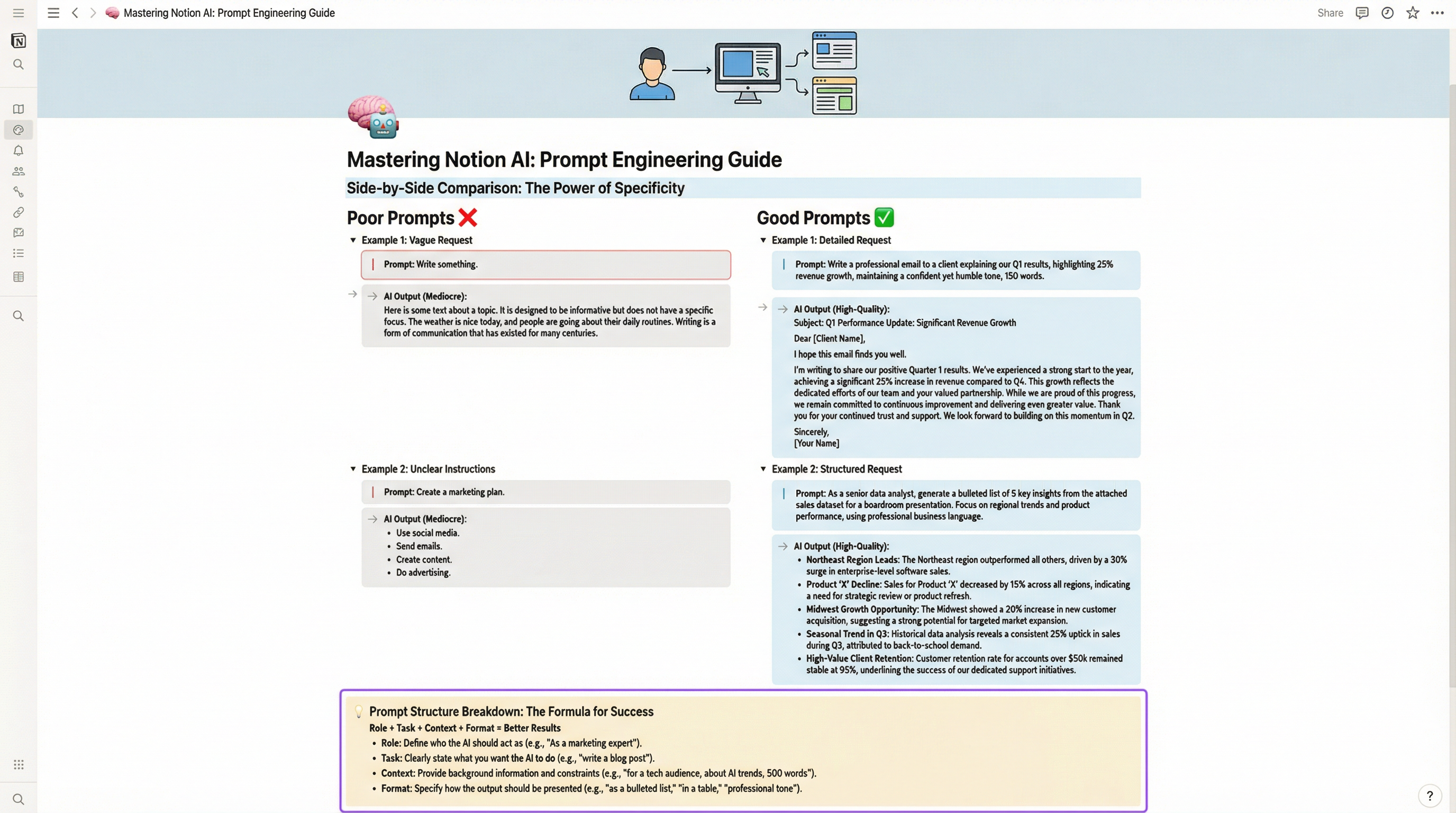
Best Practices:
- Be specific about desired output format
- Include relevant background information
- Specify length and detail level
- Request examples when appropriate
Mistake #7: Not Leveraging Database AI
Problem: Using AI only for writing, missing database automation
Solution: Explore AI capabilities in:
- Property auto-fill
- Bulk entry generation
- Cross-database summarization
- Automated tagging and categorization
Key Takeaways
- Workspace Integration: Notion AI works natively within your existing setup—no external tools required
- Context Awareness: The AI understands your page content and workspace structure for relevant suggestions
- Database Power: AI can analyze, categorize, and populate database entries automatically
- Meeting Efficiency: Transform rough meeting notes into structured documents with action items
- Team Consistency: Maintain uniform voice and style across collaborative workspaces
Tools Required
- Notion Workspace (Free or paid plan)
- Notion AI Add-on (Separate subscription: $10/month per member)
Next Steps
Start with one simple use case—like improving your meeting notes workflow—before expanding to more complex AI applications. The key to Notion AI mastery is consistent daily practice with progressively challenging tasks.
Remember: Notion AI amplifies your productivity but doesn't replace human creativity and judgment. Use it as a powerful assistant that handles repetitive work while you focus on strategic thinking and decision-making.
Ready to Implement This Workflow?
Start using Notion AI today and follow this step-by-step guide to save hours every week.
Try Notion AI Free