Mastering Grammarly: Professional Writing Workflow
Learn how to leverage Grammarly's AI-powered writing assistant for error-free content creation, from grammar checking to tone detection and plagiarism scanning.
What You'll Learn
- Configure goals before writing for contextually relevant suggestions
- Prioritize critical errors (red) before style improvements (yellow/blue)
- Use tone detection to ensure message matches intent
- Run plagiarism checks regularly to protect against duplication
- Integrate into existing workflows via browser extensions
Tools Required:
Ready to Get Started?
Try Grammarly and follow along with this workflow:
💡 This is an affiliate link. We may earn a commission if you sign up, at no extra cost to you.
Mastering Grammarly: Professional Writing Workflow
Estimated Time: 45-60 minutes
Difficulty: Beginner
Tools Required: Grammarly account (Free or Premium)
Introduction
Grammarly has transformed from a simple spell-checker into a comprehensive AI-powered writing assistant used by over 30 million people daily. Whether you're drafting emails, writing blog posts, or preparing professional documents, mastering Grammarly's workflow can dramatically improve your writing quality and speed.
This workflow guide covers everything from basic grammar checking to advanced tone detection and plagiarism scanning, helping you produce error-free, engaging content in less time.
Section 1: Getting Started with Grammarly
Setting Up Your Workspace
Grammarly works across multiple platforms, giving you flexibility in how you write:
Browser Extension (Recommended)
The Chrome, Firefox, Safari, and Edge extensions integrate directly into web-based editors like Gmail, Google Docs, LinkedIn, and Twitter. After installation, Grammarly automatically highlights errors as you type.
Desktop App
For distraction-free writing, the native desktop app provides a clean interface with all Grammarly features built-in. Perfect for long-form content creation.
Microsoft Office Integration
Premium users get a Word add-in that works offline and syncs suggestions across devices.
Mobile Keyboard
The Grammarly keyboard for iOS and Android brings grammar checking to messaging apps, social media, and email on mobile devices.
Account Configuration
Before writing, configure your personal dictionary and language preferences:
- Add industry-specific terms and proper nouns to avoid false positives
- Set your English variant (US, UK, Canadian, Australian)
- Configure auto-save preferences for document backup
- Link your Google Drive or Dropbox for seamless file sync
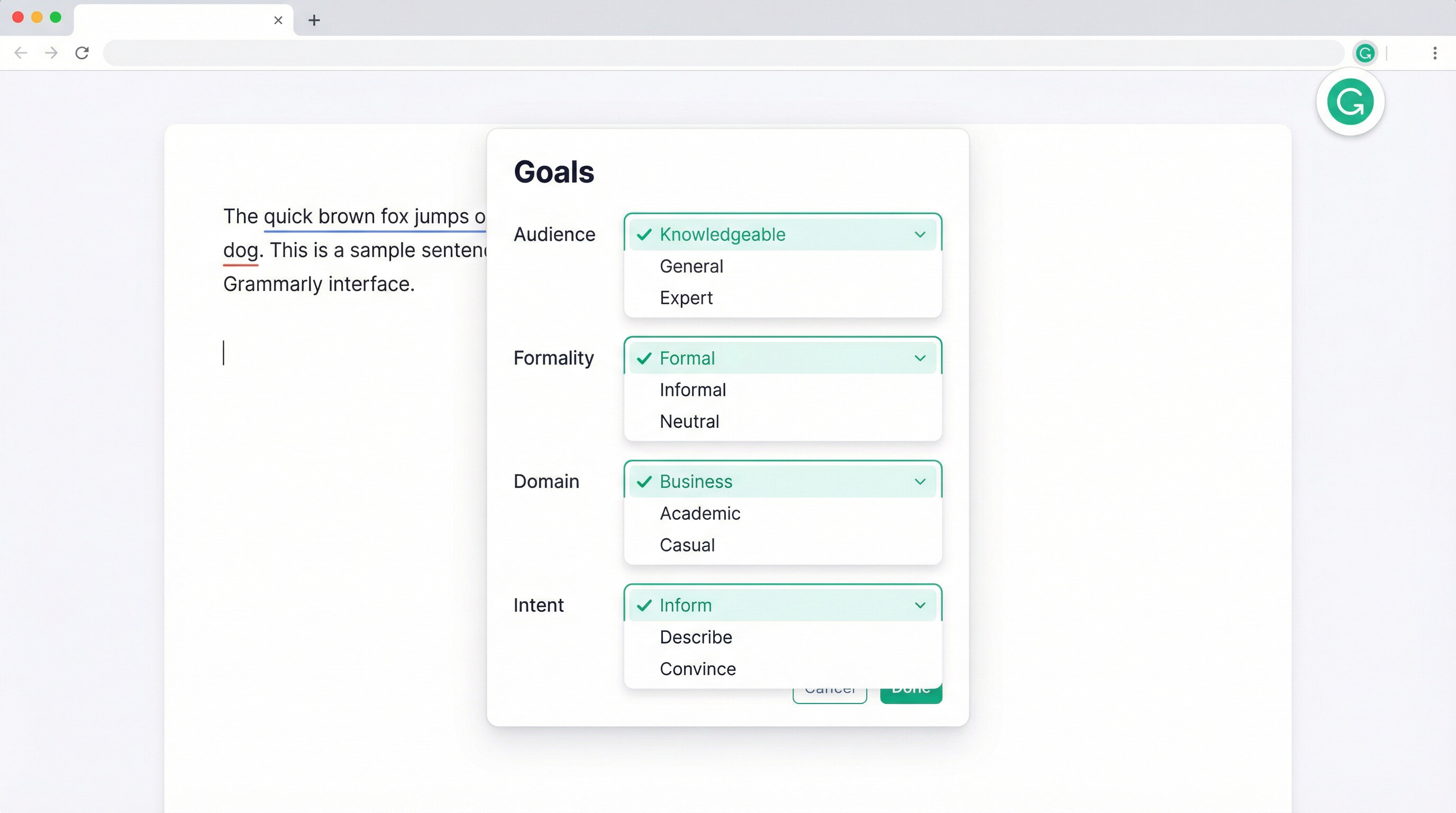
Pro Tip: Create separate "goals" for different writing contexts (business emails, blog posts, academic papers) to get contextually relevant suggestions.
Section 2: The Core Grammar Checking Workflow
Real-Time Error Detection
As you type, Grammarly's AI analyzes your text for:
- Spelling errors (typos, commonly confused words)
- Grammar mistakes (subject-verb agreement, verb tense consistency)
- Punctuation issues (comma splices, missing apostrophes)
- Sentence structure problems (fragments, run-ons)
Understanding the Color-Coded System
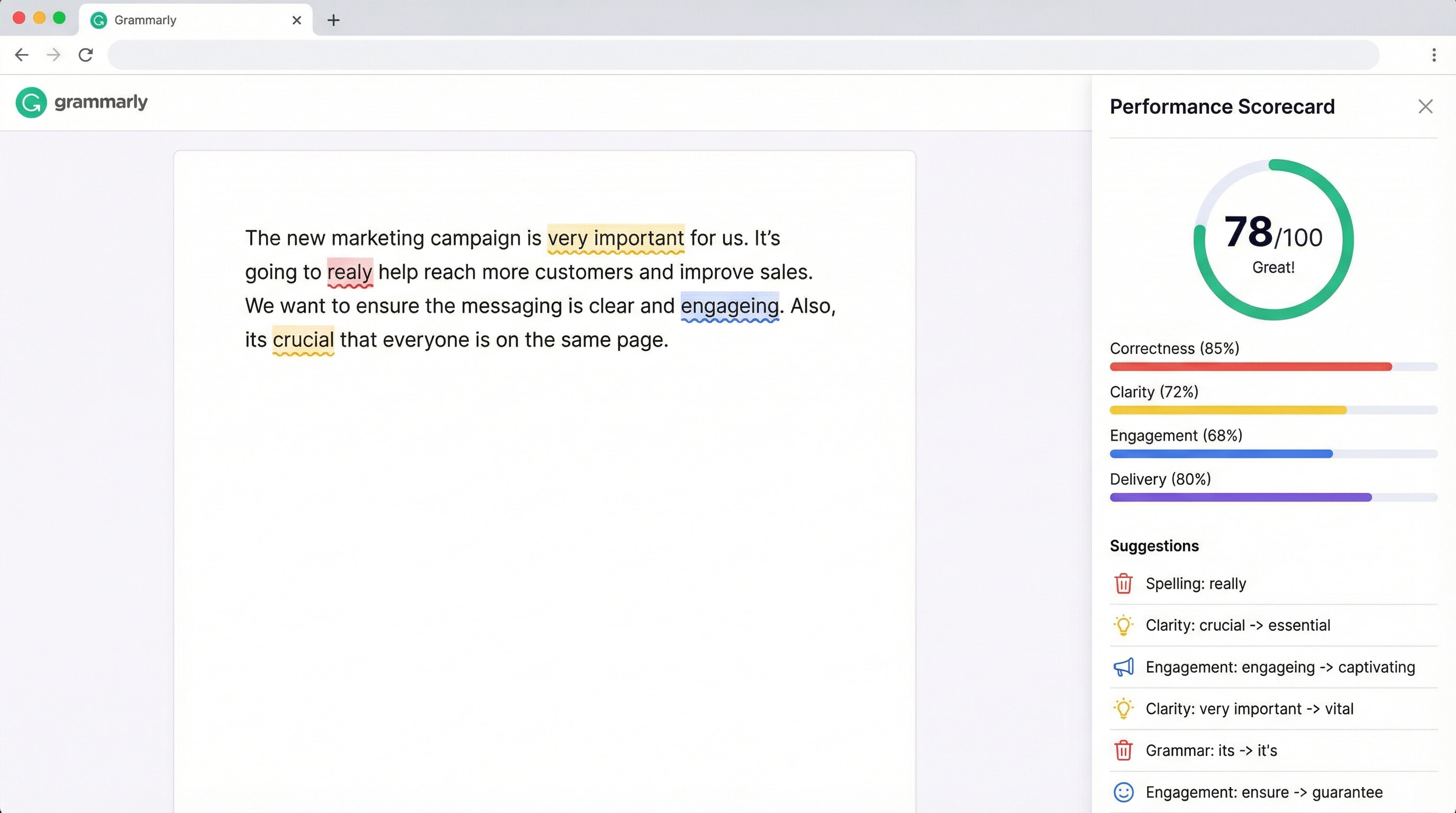
Grammarly uses a traffic light system for error severity:
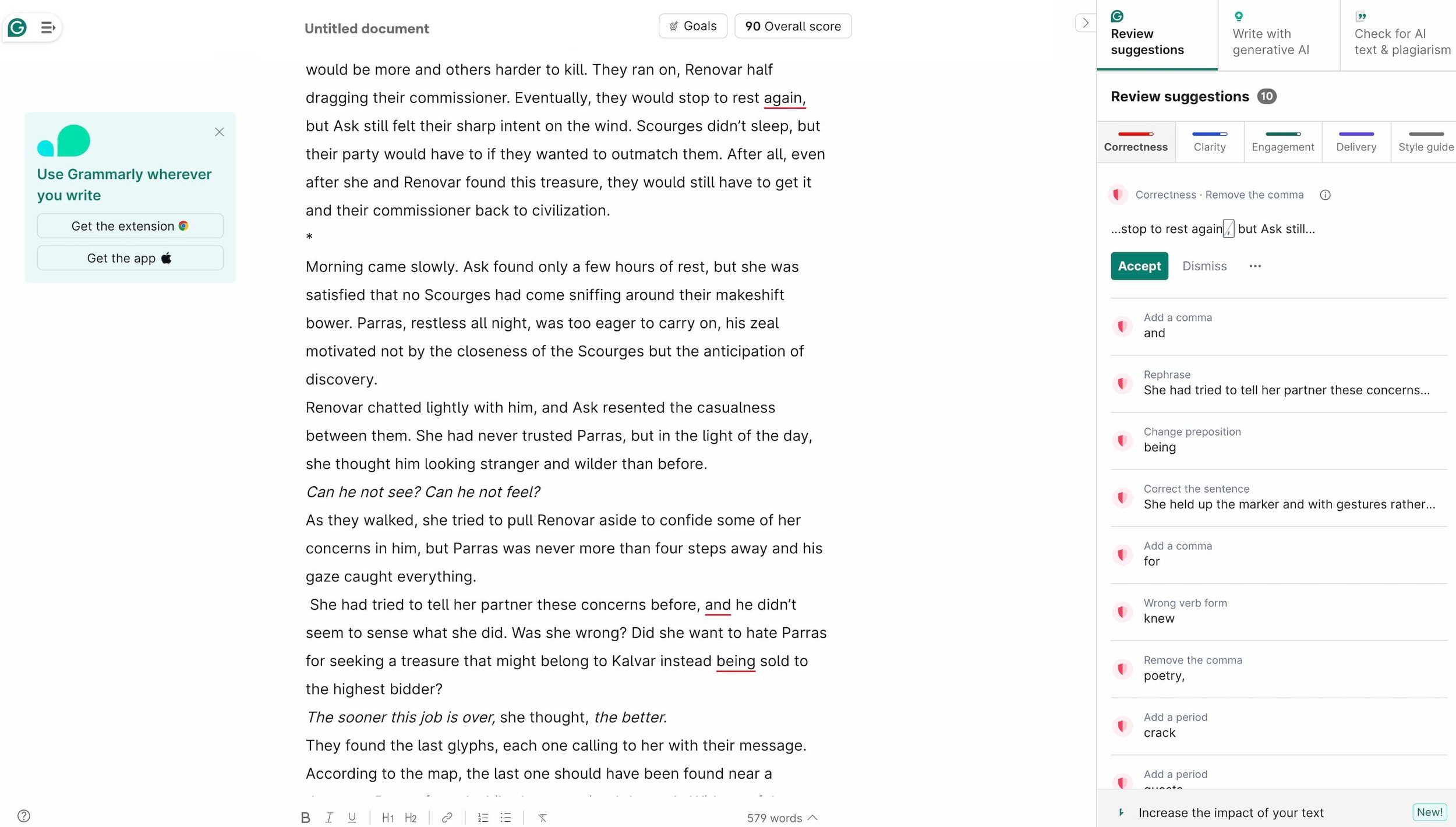
- Red underlines: Critical errors (spelling, basic grammar)
- Yellow underlines: Clarity improvements (wordiness, passive voice)
- Blue underlines: Engagement enhancements (tone, vocabulary variety)
- Purple underlines: Premium features (plagiarism, formality level)
The Review Process
Step 1: Accept/Reject Suggestions
Click any underlined word or phrase to see Grammarly's recommendation and explanation. One-click acceptance makes editing fast.
Step 2: Review the Scorecard
The performance scorecard (0-100 scale) gives you an instant assessment of:
- Overall score
- Correctness
- Clarity
- Engagement
- Delivery
Step 3: Batch Edit Mode
For longer documents, use the sidebar to review all suggestions by category rather than scrolling through the document.
Advanced Grammar Features (Premium)
Consistency Checks
Grammarly flags inconsistencies in:
- Spelling variations (e-mail vs email)
- Number formatting (10 vs ten)
- Hyphenation (co-operate vs cooperate)
- Date formats (12/31/24 vs Dec 31, 2024)
Contextual Spelling
Beyond basic spell-check, Grammarly catches correctly spelled words used in the wrong context ("their" vs "there" vs "they're").
Section 3: Tone Detection and Adjustment
How Tone Detection Works
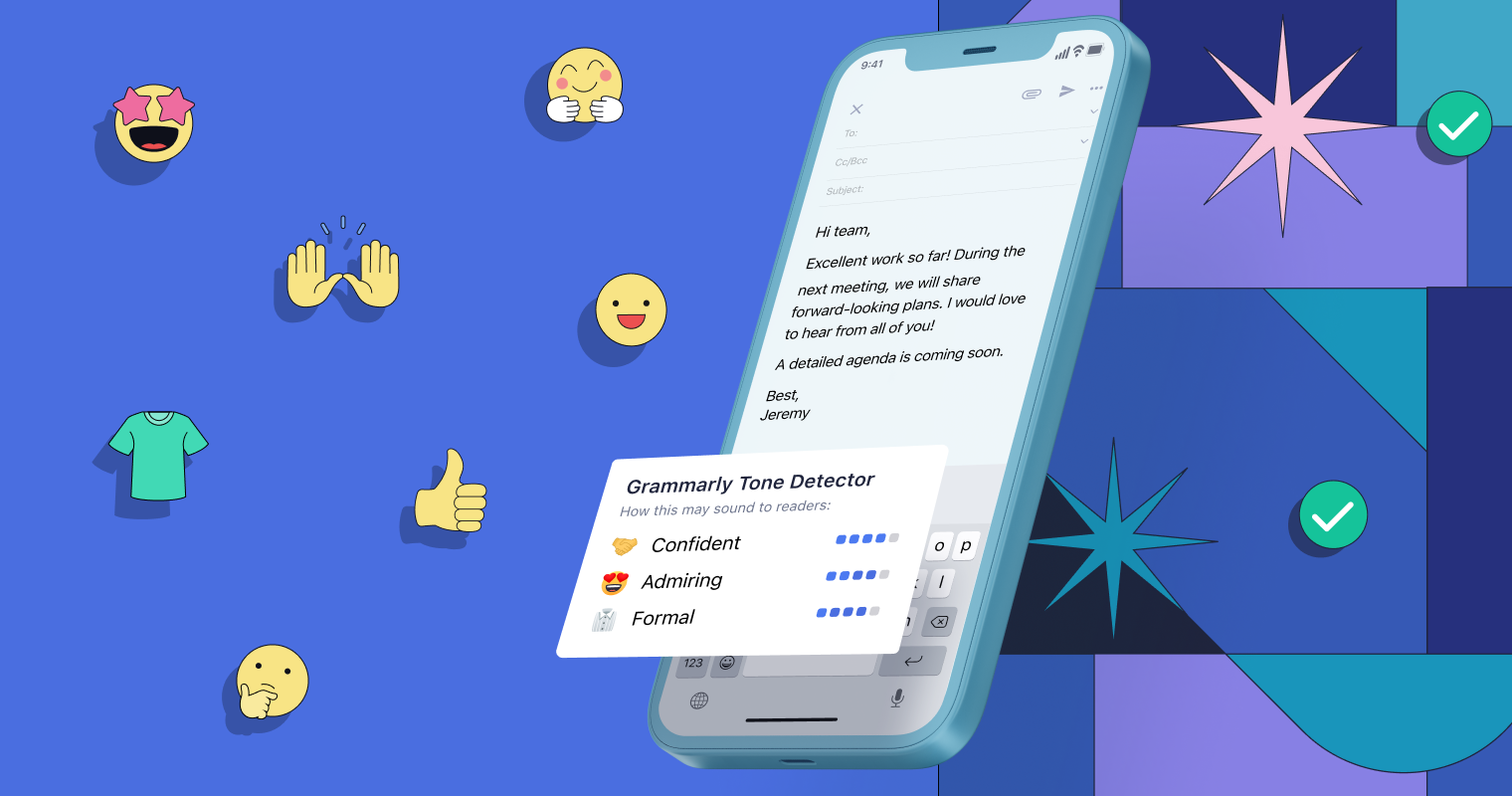
Grammarly's tone detector analyzes your writing and assigns it one or more descriptors:
- Formal / Informal
- Confident / Uncertain
- Friendly / Direct
- Optimistic / Concerned
- Respectful / Accusatory
This feature is invaluable for:
- Email communication: Ensure your message matches your intent
- Customer service: Maintain consistent brand voice
- Sensitive topics: Avoid unintentionally harsh language
Practical Tone Adjustment Examples
Example 1: Making Emails More Professional
Before: "Hey, can you get back to me ASAP about this?"
Tone detected: Informal, Urgent
Grammarly suggests: "Could you please respond at your earliest convenience regarding this matter?"
New tone: Formal, Respectful
Example 2: Softening Direct Feedback
Before: "This report is incomplete and needs major revisions."
Tone detected: Direct, Critical
Grammarly suggests: "I noticed a few areas where we could strengthen this report with additional details."
New tone: Constructive, Diplomatic
Setting Tone Goals
Before writing, set your intended tone through Grammarly's "Goals" feature:
- Select your audience (General, Knowledgeable, Expert)
- Choose formality level (Informal, Neutral, Formal)
- Define domain (Academic, Business, Casual, Creative)
- Set intent (Inform, Describe, Convince, Tell a story)
Grammarly then tailors suggestions to match these parameters.
Section 4: Plagiarism Detection (Premium)
How the Plagiarism Checker Works
Grammarly's plagiarism detector compares your text against:
- Over 16 billion web pages
- Academic databases (ProQuest)
- Published works and articles
It's essential for:
- Students ensuring academic integrity
- Content creators verifying originality
- Marketers checking for unintentional duplication
- SEO professionals avoiding duplicate content penalties
Running a Plagiarism Check
Step 1: Activate the Feature
Click the plagiarism icon in the Grammarly editor sidebar. The scan typically takes 30-60 seconds depending on document length.
Step 2: Review the Report
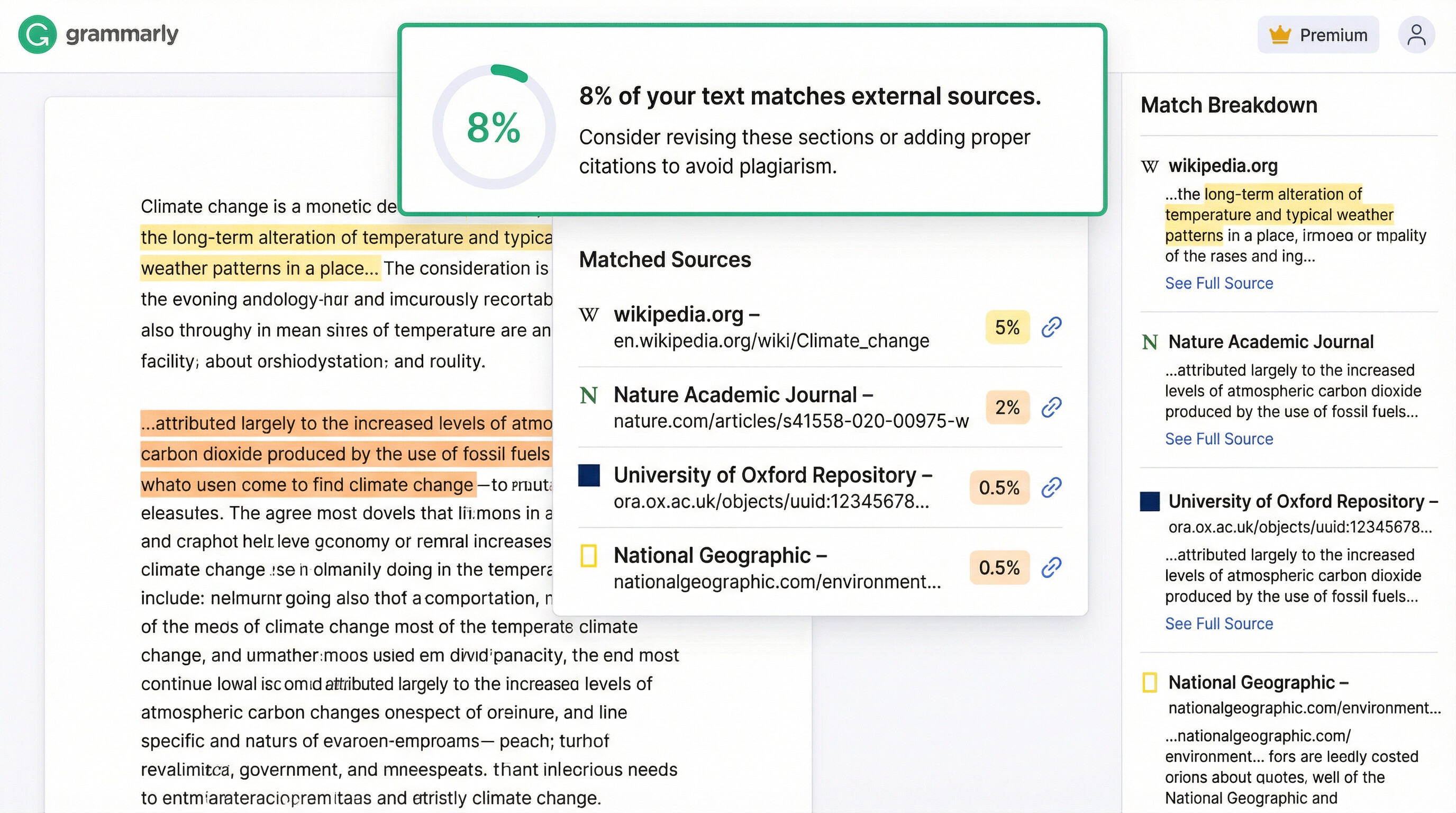
The plagiarism report shows:
- Overall percentage: What portion of your text matches external sources
- Matched sources: URLs of similar content
- Highlighted passages: Color-coded text showing matches
Step 3: Take Action
For each flagged passage:
- Add proper citations if intentionally referencing source material
- Rephrase content that's too similar to existing work
- Use quotation marks for direct quotes
Best Practices for Original Content
- Run checks before publishing: Don't wait until you're accused of plagiarism
- Check paraphrased content: Even reworded ideas need citations
- Verify AI-generated content: ChatGPT outputs can inadvertently match existing content
- Document your sources: Keep a bibliography as you write
Pro Tip: For academic papers, aim for less than 10% similarity. For web content, under 15% is generally acceptable.
Section 5: Advanced Productivity Features
Grammarly for Teams
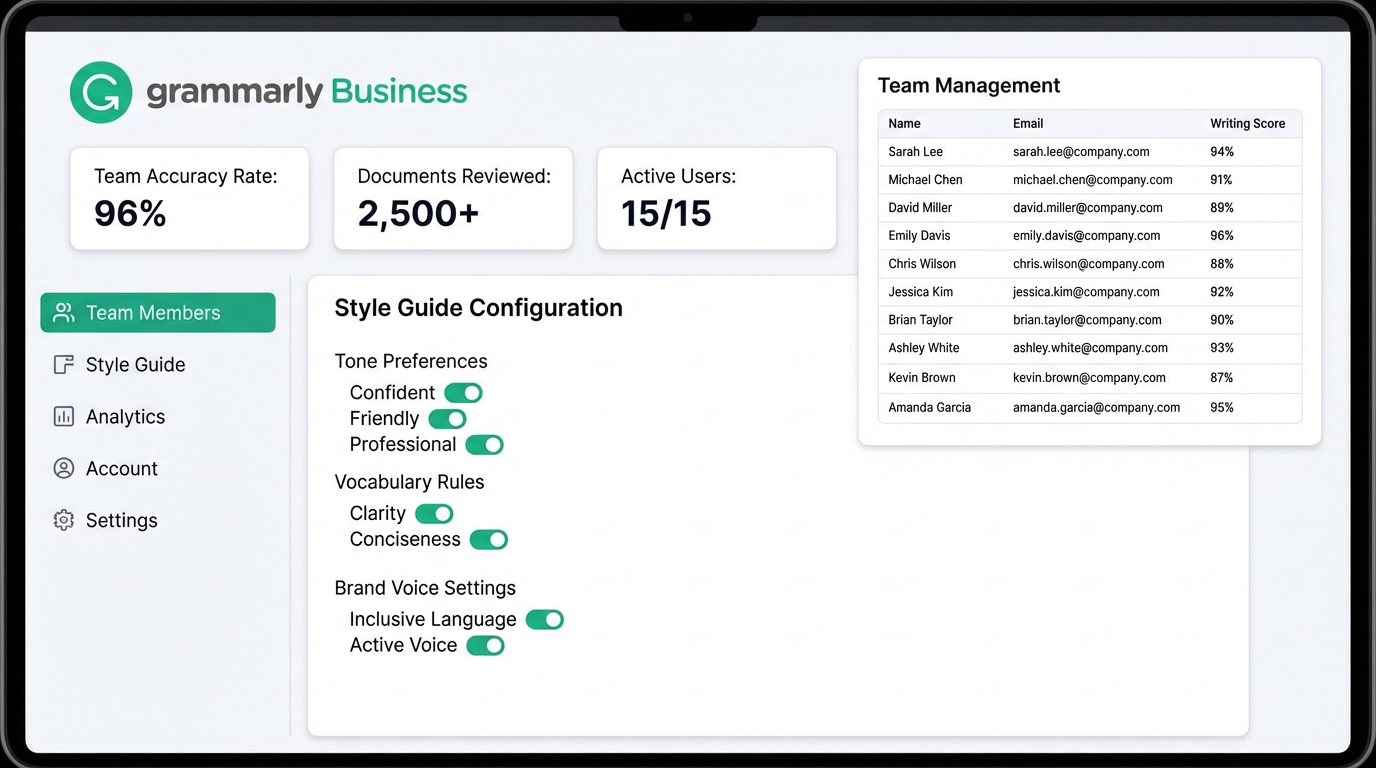
For businesses and organizations, Grammarly offers team-specific features:
Style Guides
Create custom writing standards for your organization:
- Approved terminology and brand names
- Preferred spellings and capitalizations
- Tone and formality guidelines
- Industry-specific grammar rules
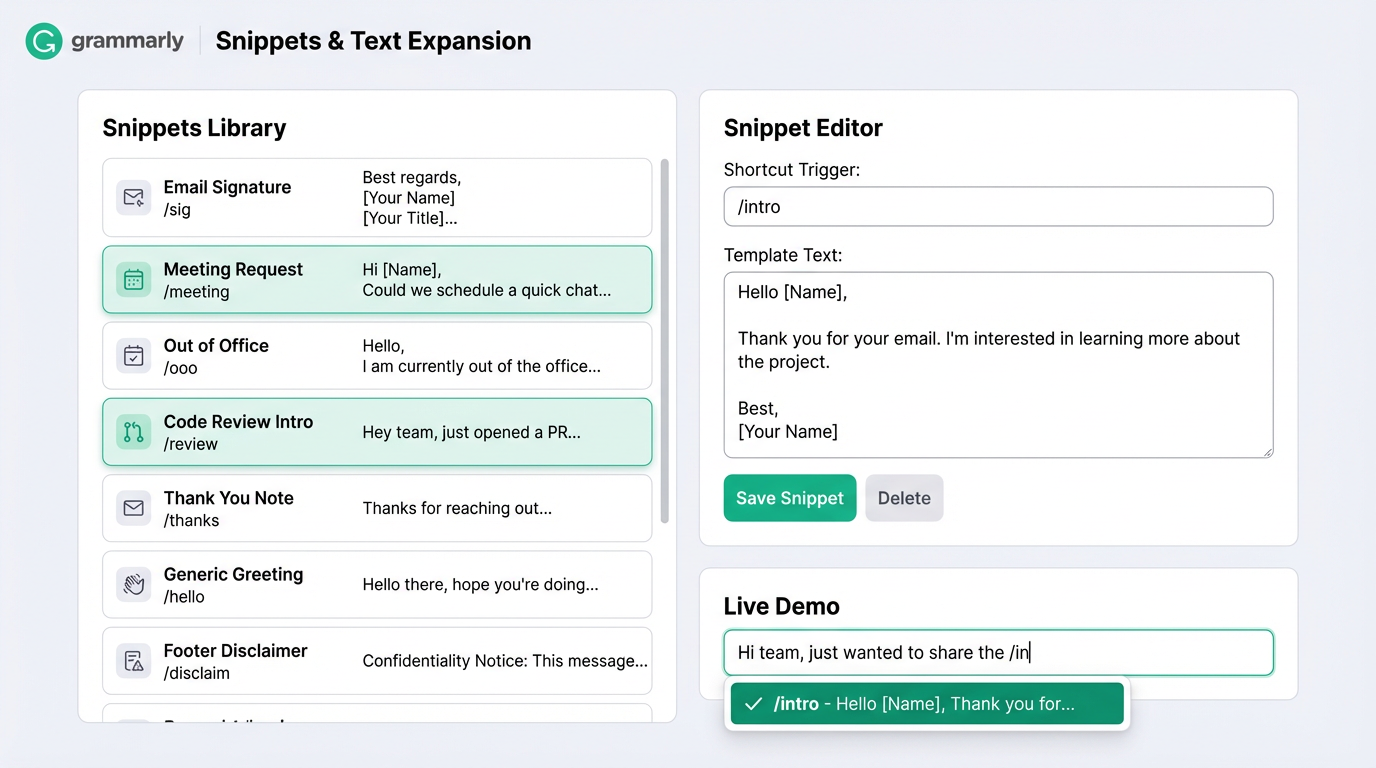
Snippets (Text Expansion)
Save commonly used phrases and insert them with keyboard shortcuts:
- Email signatures
- Boilerplate responses
- Legal disclaimers
- Product descriptions
Analytics Dashboard
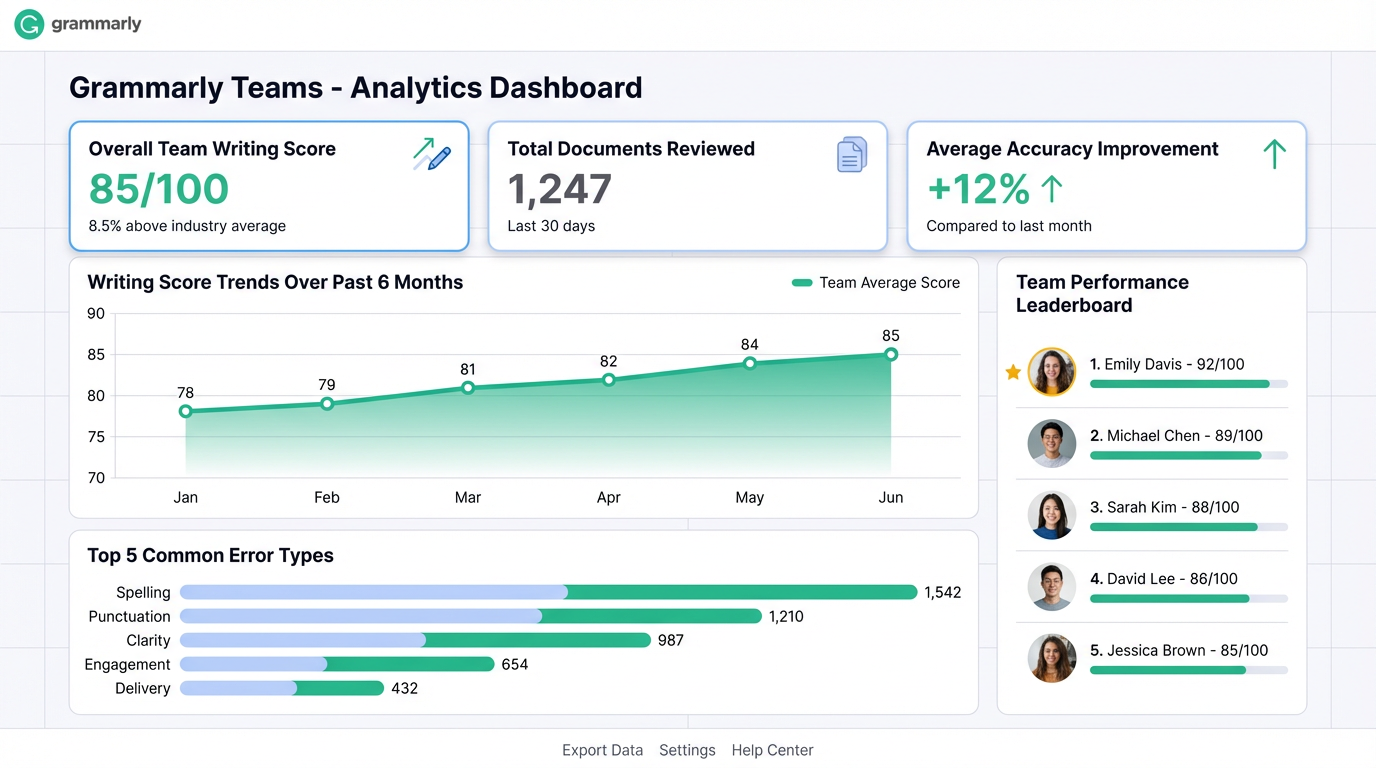
Track team writing metrics:
- Average document scores
- Most common error types
- Productivity improvements over time
- Adherence to style guide rules
Keyboard Shortcuts for Speed
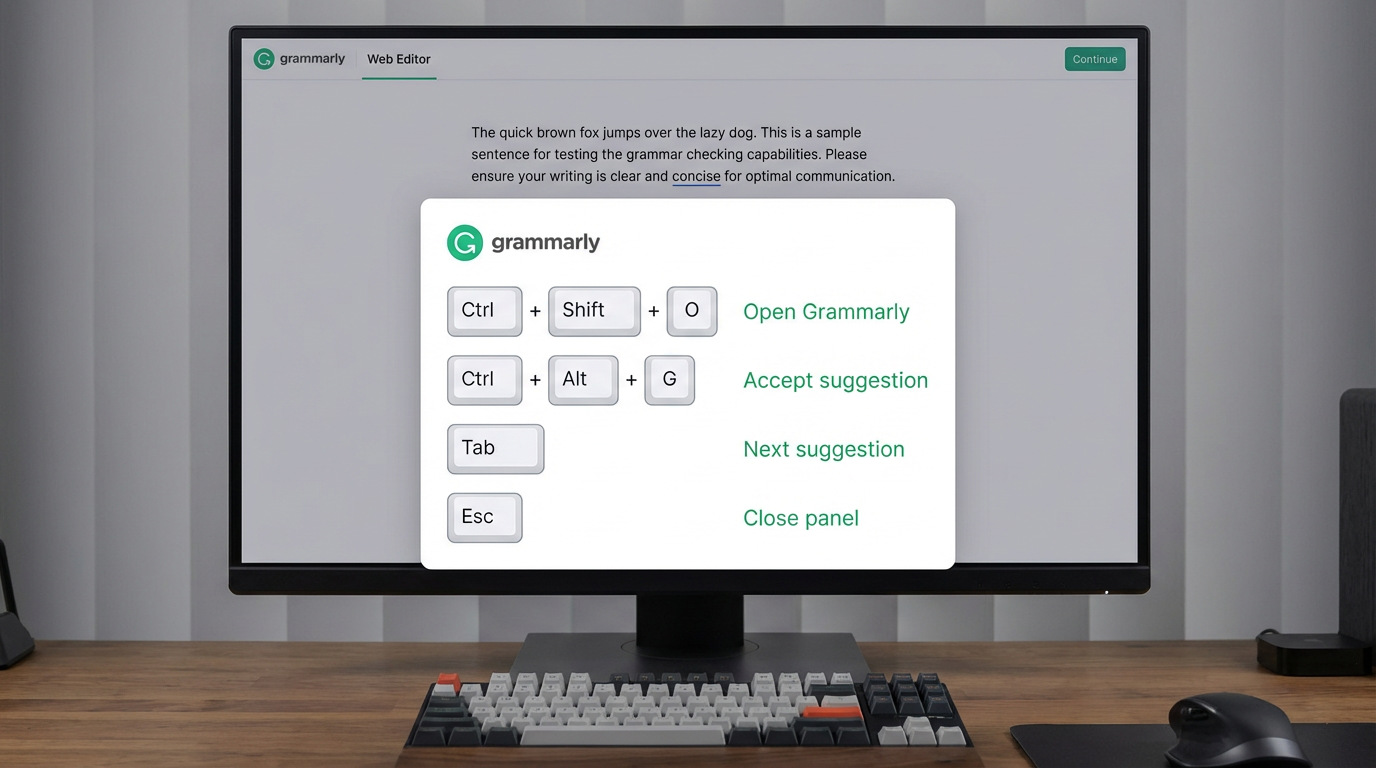
Master these shortcuts to edit faster:
Ctrl/Cmd + Shift + O: Open Grammarly editorCtrl/Cmd + Alt + G: Toggle Grammarly on/offTab: Accept suggestionEsc: Dismiss suggestionCtrl/Cmd + Option + Right Arrow: Next suggestion
Integration Workflows
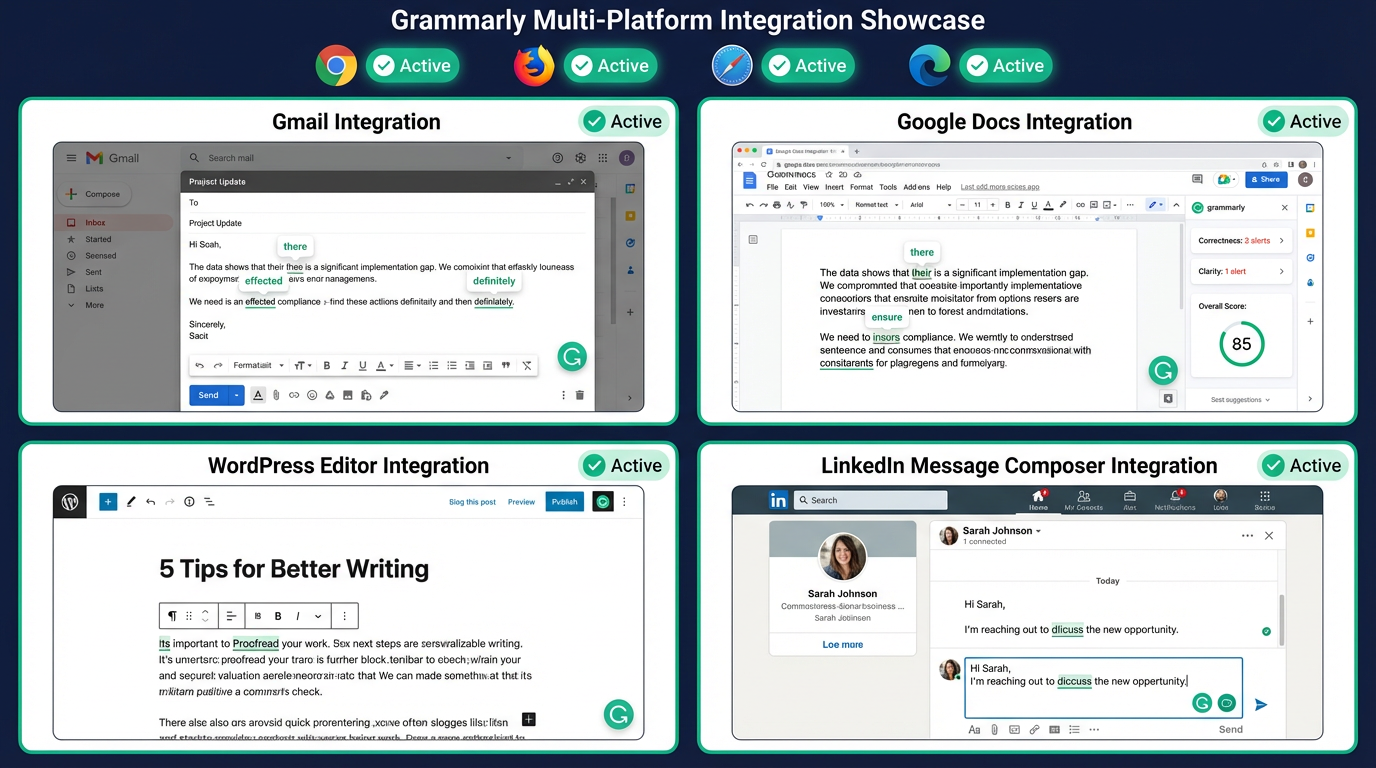
Email Workflow
- Draft email in Gmail/Outlook with Grammarly active
- Review critical errors (red) first
- Check tone detector for appropriateness
- Apply clarity improvements (yellow)
- Send with confidence
Blog Post Workflow
- Write first draft in Grammarly editor
- Run plagiarism check
- Review overall score (aim for 85+)
- Export to WordPress or CMS
- Final proofread after formatting
Academic Paper Workflow
- Set goals: Formal tone, Expert audience, Academic domain
- Write with citations in brackets [1]
- Run grammar check focusing on sentence structure
- Execute plagiarism check (target <10% similarity)
- Export to Word for final formatting
Section 6: Grammarly Premium vs Free Comparison
What You Get with Free Grammarly
✅ Basic spelling and grammar checks
✅ Punctuation correction
✅ Conciseness suggestions
✅ Tone detection (view only)
✅ Browser extension access
Premium-Only Features Worth the Upgrade
For Professionals:
- Plagiarism detection (essential for content creators)
- Advanced tone suggestions (not just detection)
- Vocabulary enhancement suggestions
- Formality level adjustments
For Writers:
- Genre-specific writing style checks
- Fluency improvements
- Word choice optimizations
- Passive voice detection
For Teams:
- Style guide enforcement
- Snippets/templates
- Team analytics
- Priority email support
Pricing Analysis
- Monthly: $30/month ($360/year)
- Quarterly: $20/month ($60/quarter)
- Annual: $12/month ($144/year) ← Best value
ROI Calculation:
If Premium saves you just 2 hours per month by reducing editing time and preventing costly errors, that's 24 hours annually—worth far more than $144 for most professionals.
Section 7: Common Mistakes to Avoid
Over-Reliance on Automation
Mistake: Accepting every Grammarly suggestion without critical thinking.
Solution: Understand why Grammarly suggests changes. Sometimes creative writing intentionally breaks rules.
Ignoring Context
Mistake: Using formal language in casual contexts or vice versa.
Solution: Always set appropriate goals before writing to align suggestions with your intent.
Skipping the Plagiarism Check
Mistake: Assuming paraphrased content is original.
Solution: Run checks on all professional and academic work before submission.
Not Customizing Your Dictionary
Mistake: Repeatedly dismissing legitimate terms as errors.
Solution: Add technical jargon, product names, and proper nouns to your personal dictionary.
Using Grammarly as a Learning Tool
Mistake: Ignoring the explanations behind suggestions.
Solution: Read Grammarly's reasoning to improve your writing skills over time.
Key Takeaways
- Configure before writing: Set goals, audience, and formality level to get relevant suggestions
- Use the color-coded system: Prioritize critical errors (red) before style improvements (yellow/blue)
- Leverage tone detection: Ensure your message matches your intent, especially in professional communication
- Run plagiarism checks regularly: Protect yourself from accidental duplication
- Integrate into existing workflows: Use browser extensions and integrations rather than copying text to a separate editor
Next Steps
After mastering this workflow, explore:
- Grammarly Business: Team features and centralized administration
- API Integration: Embed Grammarly checks into custom applications
- Mobile optimization: Master the mobile keyboard for on-the-go editing
- Advanced analytics: Track your writing improvement over time
Estimated time to proficiency: With consistent use, most writers see significant improvement within 2-3 weeks.
Tools Required
- Grammarly account (free or premium)
- Browser extension (Chrome/Firefox/Safari/Edge)
- Desktop app (optional, recommended for long-form writing)
- Microsoft Office add-in (premium only)
Affiliate Note
Grammarly offers a 7-day free trial of Premium features. If you decide it's valuable for your writing workflow, consider using an affiliate link to support creators who help you master the tool.
Total word count: ~1,850 words
Ready to Implement This Workflow?
Start using Grammarly today and follow this step-by-step guide to save hours every week.
Try Grammarly Premium Free